Git and GitHub Basics: From Installation to push

- Git is a Distributed Version Control System (DVCS), a tool for tracking and managing changes to files such as source code.
- By tracking file changes it can roll back to a previous state or compare changes. It also facilitates collaboration among multiple developers and manages conflicting changes.
- Branches allow multiple pieces of work to proceed in parallel. Each branch is managed independently and changes can be merged.
- Remote repositories allow collaboration and code sharing with other developers. Remote hosts include GitHub, GitLab, and Bitbucket.
Installing git on Ubuntu
sudo apt install git
The command to install git on Ubuntu is shown above.
git --version
Once installation is complete, the installed Git version can be checked with the command above.
Cloning from github

git clone <repository to clone>
ex, git clone [https://github.com/eeoon/eeoon.git](https://github.com/eeoon/eeoon.git)
A specific branch can be cloned with an option.
git clone https://github.com/eeoon/eeoon.git -b humble
Pushing to github
-
To push to your own github, you first need to sign up for GitHub and create a repository; then the code or project you are working on can be pushed to that repository.
-
Once you have signed up for GitHub,
git config --global user.name "Your Name"git config --global user.email "your.email@example.com"run the commands above.
-
This sets the user name and email address. Because the global option is used, the setting is global; to set it locally, run the command without the option. Since it is set globally here, there is no need to repeat it.
Creating a GitHub repository
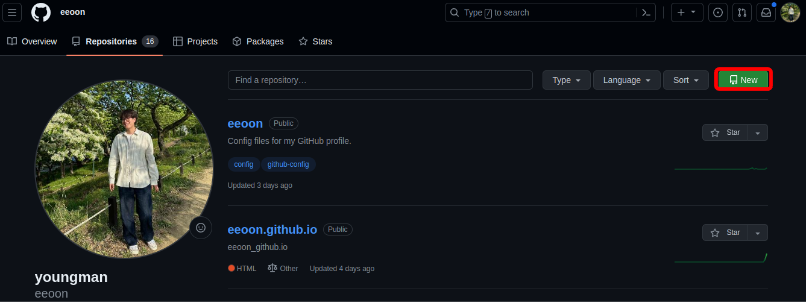
After signing up, click Your Repositories and then click New in the upper right.
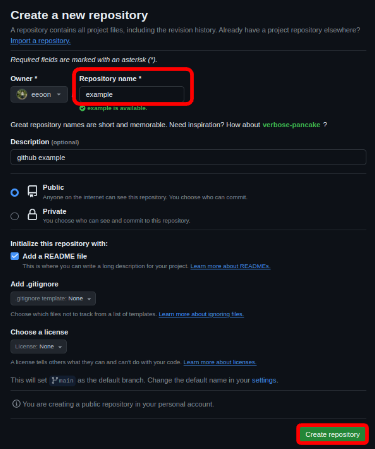
When the following screen appears, enter the repository name and optionally set the description, properties, etc.
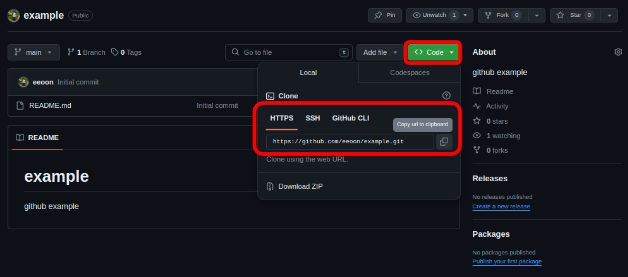
After confirming the created repository, click Code in the upper right and copy the URL.
On your desktop, go to the repository to be uploaded to GitHub and run the following commands.
git init
Initializes Git in the local project directory to be uploaded to GitHub.
git add .
Adds the project files so that they are managed by Git, ahead of the commit.
git commit -m “commit message”
Adds a commit message and performs the commit.
The commit message is a brief description of the changes that will be shown once the push is made.
git remote add origin https://github.com/username/repository.git
Adds the remote repository created on GitHub to the local Git.
Enter the URL copied from the screenshot above.
ex,
git remote add origin https://github.com/eeoon/example.git
git checkout -b main
Changes the branch. Creates a new branch and switches to it.
git branch -m master main
git fetch origin
git branch -u origin/main main
If the branch is elsewhere (master), it needs to be renamed.
If the method above does not work, try the following.
git checkout -b main
git checkout main
git merge origin/main
git push origin main
Pushes the local changes to the remote repository (GitHub).
If the last step still fails, run
git push origin +main
to force the git push.
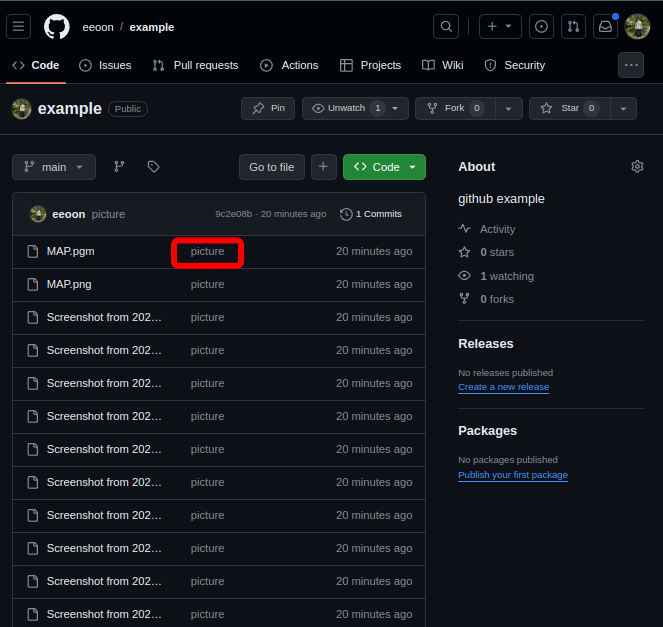
If the git push succeeded, the result looks like the following. (The commit message was set to “picture”.)